Showing posts with label Printer. Show all posts

Friday, November 10, 2023

Installing a printer on the Eero router in Debian

In a hurry? See the short version at the bottom.

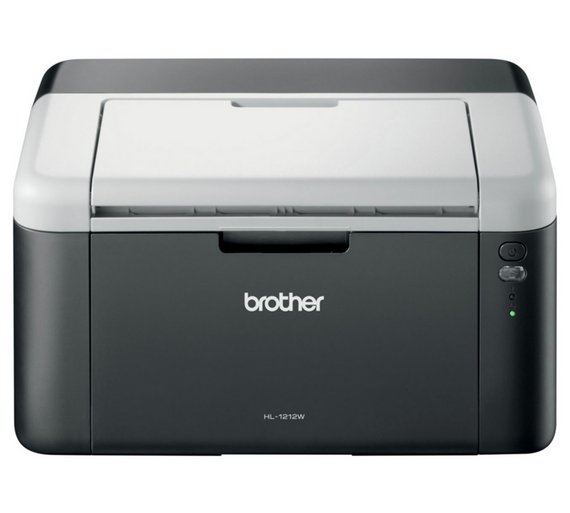
I recently switched to fibre internet and got a free eero router. Computers, phones and tablets in the house all connected easily, but my Brother HL-1212W was a problem. Previously I had installed the printer using WPS (Wi-Fi Protected Setup), which allows devices to connect without a password, but the Eero does not support it. 

eero does not support WiFi Protected Setup (WPS), as it has well-documented security issues.

My printer is a budget model with no LCD screen and no keypad, and the only way to get it to connect to the network is to set it up with WPS. I could connect the printer with a USB cable and set it up easily using printer-driver-brlaser from the Debian repository, but this driver does not enable communication with printer settings. I believe the Windows driver does, but for Linux users with older printers, this could be a big problem.

Fortunately, I still had my old router which I bought myself, so I could access printer settings by turning that back on and connecting to the old network (once I had remembered the password I had given the printer!).

My problems didn't end there, however. I had given the printer a static IP address, and assumed that I would have to again. In changing settings in the printer configuration page, I only managed to break the connection to the old router. 

I tried the WPS setup again, but it didn't seem to work. After much turning off and on again, the printer managed to connect to the old network. I later discovered that the eero uses a single SSID for 2.4 and 5 GHz frequency network connections, and that 2.4GHz devices (ie my printer) may be "unstable" and "experience an issue" (eero Help Centre). Apparently it's possible to disable 5GHz for ten minutes, which would probably have helped here, although eero don't mention this on the How do I connect my printer to my eero network? page.

After that, I discovered that the eero router doesn't do static IP addresses. Instead, devices can be given a reserved IP address by MAC ID after connecting by DHCP. This apparently is a good thing, see Port Forward and The Tech Journal.

So, finally having got back a connection to the printer using the old router, I could run the printer connection wizard to give the printer the password to connect to the eero. I gave the printer a reserved IP address using the Android app (which is the only way to administer the eero).

At which point, the printer should have been discovered automatically, but, following the pattern of this story, of course it wasn't. To cut a long story short, I had to enter the IP address of the printer in the New Printer dialogue. Entering the router IP address brought up some sort of Windows Samba printer connection dialogue.

You must log in to access  Domain WORKGROUP

The router IP address is blocked by eero (which insists on administration by smart phone app, as mentioned above). A wild guess would be that the eero expects connections to the printer to be made via Samba, which might be normal for Windows computers (and Apple? No experience here) and as a result cups-browsed can't detect the printer automatically. Funnily enough, it could in Bullseye, but not in Trixie. Details here: Debian Forum.

The short version:

  • Older printers without a screen that require WPS to connect to a network may be a problem, as the eero doesn't have WPS. Access the printer homepage using the old router and run the connection wizard.
  • If you have an older router with WPS, disable 5GHz in the eero before trying to connect.
  • Do not try to give the printer a static IP address in printer settings - from the eero app, assign the printer a reserved IP address.
  •  If the printer is not discovered automatically in the New Printer dialogue, try entering the printer's IP address in the Host field in Find Network Printer.


Monday, September 27, 2021

Installing Brother HL-1212 W-Fi Mono Laser Printer in Debian Bookworm/Bullseye (Gnome)

[Update 2: The latest version of printer-driver-brlaser works without issue now in Bookworm post release and Trixie (Testing), which both at version 6.3 at the time of writing. Bullseye still has 6.1, so the issue may remain.]

[Update: Unfortunately printer-driver-brlaser is affected by a bug that means documents with images sometimes fail to print with no error message at all. Gnome says the document has printed successfully, CUPS says the document has printed successfully, but nothing appears from the printer, not even blank pages, and the printer records no error.

Back to the driver from the Brother web site then.

See Google Groups, and Github. The driver is patched on Github but it seems there is no Debian maintainer for the package, so no hope for the moment that the Debian package affected (6.2) will be fixed any time soon.]


The Brother HL-1212 WiFi printer does not do driverless printing. See previous post. "Modern" printers don't need drivers, but budget printers like this one (still on sale at the time of writing) seem to date back a decade or two and need drivers.

Previously, I downloaded a driver installation tool from Brother (which worked very well). I am now using Debian Bookworm (Testing), and found today that Debian has included a driver for this printer it its repositories in Bullseye, namely in:

printer-driver-brlaser

Adding the printer was a very easy process. In the printer dialogue click "Add". The printer dialogue found the printer without adding the network address, although there is an option to search by IP address. Three options came up - the printer name, the printer name with some sort of address I didn't recognise appended to it, and a CUPS reference. I chose the first one and the printer entry that came up printed a test page straight away. (Gnome Software said it needed to look for additional things to install, went away and did so, and came back to say it couldn't find anything, but the printer worked anyway.) 

The printer entry contained fields for driver and address, so I selected/entered those, even though the printer seemed to work OK already.

The HL-1212W is available in the UK from Argos with four additional toner cartridges for £159.99, which is quite a good deal if you do a lot of printing.


Friday, February 5, 2021

Driverless printing in Debian Part II - Sharing printers over the network

Previously, I wrote about the idea of driverless printing: a common language shared between computers and printers that allows a printer to tell a computer "this is what I can print", and the computer to send the print job to the printer in a format it can print.

Thus removing the tedious necessity of installing drivers to use a printer, and allowing any device to print to any printer.

I also wrote about how my printers didn't have the common language required for driverless printing.

In this post I'm going to write about how it is possible to print from a Linux computer or Android device to printers connected to the network without installing drivers: by sharing printers over the network. (You do need one computer with the drivers installed.)

This is something I discovered by accident. I noticed when using my desktop PC running Debian Buster Gnome that the two wireless printers on my home network were listed twice in printer settings, the second listing being suffixed with the name of my laptop.

This confused me for a while until I realised that by default my laptop publishes network printers connected to it, and my desktop detects and adds the printers as shared network printers via the laptop.

And then I realised that it is possible to use the printers shared by the laptop even without the printer driver installed on a device. The printers appear on my Android phone, and I can print to them from it.

Which, of course, is useful.

So how does it work? Well, it seems the laptop has a system to publish printers connected to it so that they are available to other devices connected to the network, which can then use the common language I mentioned earlier - Internet Printing Protocol (IPP) - to pass the print job to the laptop, which can then pass it to the printer.

In an ideal world of course, my printers would have the version of the shared language that would allow any device to connect without a driver - IPP Everywhere™ - but at least this way phones and tablet on the home network can print without a driver.

The system that publishes printers in this way is a Zero-configuration networking (zeroconf) multicast DNS/DNS-SD service. Something that Apple implements with Bonjour (hello - understandable) and Linux with Avahi (a genus of woolly lemur - mkay).

Printers are discovered in Linux by cups-browsed.

Bonjour is built into printers so they can advertise themselves on the network, Debian has Avahi so it can advertise connected printers and cups-browsed so that it can discover them, and Android has Network service discovery (NSD) so it can discover connected printers.

Of course you may not want your computer to add every printer discovered on the network, especially if they are a duplicate of an already-installed printer. This could be seen as a bug not a feature.

However, it is possible to disable publishing of printers connected to the computer.

The option was ticked by default in XFCE in Debian Bullseye, but left unticked by default in Gnome in Debian Buster.

So, if you want to print from a Linux computer, or an Android device, but don't want to/can't install the driver, this is a way to do it. I think everything was installed by default in Debian, with the only difference being that sharing was enabled in one installation and not another. In other distributions it may be necessary to install Avahi or cups-browsed.

And of course this sort of thing is possible in Apple and Windows too, but I don't have Apple or Windows devices. If you do, this guide may be useful.


Wednesday, January 20, 2021

Driverless printing in Debian

I installed Debian Testing on my laptop recently, and had to reinstall my printer. Before heading to the Brother website to download the installation script they provide, I decided to check out the situation in Debian regarding printers. Previously I had tried an open source driver (which produced deformed text) before installing the proprietary drivers (via the installation script) from Brother.

I found the following on the Debian Wiki:

A proportion of the material on the Printing Portal pages is applicable to installing printer drivers (free and non-free) and PPDs and setting up a print queue for legacy printers. However, it is as well to be aware that drivers and PPDs are deprecated in CUPS and eventually they will not be catered for as they are now. This has been a long-term objective of the CUPS project for some time.

Users possessing a modern printer are urged to consider the following points and explore a driverless printing solution for their printing needs, whether or not the deprecation is a motivating factor.

  • Driverless printing was introduced to CUPS and cups-browsed in Debian 9 (stretch). 
  • Support for driverless printing with CUPS and cups-browsed is considerably extended in Debian 10 (buster) and Debian 11 (bullseye). 
  • Printers sold in the last 10 years or so are almost always AirPrint devices and therefore would support driverless printing when the device is connected by ethernet or wireless.

(CUPS is the standards-based, open source printing system developed by Apple Inc. for macOS® and other UNIX®-like operating systems. CUPS uses the Internet Printing Protocol (IPP) to support printing to local and network printers.)

Well, I have a modern printer, so I set off to explore a driverless printing solution.

Here's what I learnt: computers used to need a driver to tell the computer how to format a print job so that a printer could print the job. Driverless printers tell the computer (or today, phone tablet or other mobile device) what their printing capabilities and requirements are over the network, and the device then sends the job to the printer using a common language to printer and device.  Debian Wiki.

Which should make using multiple devices on multiple printers very easy.

There are two "common languages" which devices can use to talk to enabled printers: IPP and AirPrint.

"Modern IPP printers are printers capable of driverless printing", says the Debian Wiki.

The instructions are as follows:

Open the web interface and choose Administration. Select Add Printer. 

Your printer will be under the Discovered network Printers, probably with more than one entry. Choose the entry that contains the word driverless and move on to Continue. 

Debian Wiki

Unfortunately,I couldn't find an entry containing the word driverless.


Although my printer can talk to my computer (it has IPP), it doesn't seem to have the version of that language that allows a device to send a job to a printer without a driver (IPP Everywhere™).

It doesn't appear in the database of IPP Everywhere™ printers.

Printers sold in the last 10 years or so are almost always AirPrint devices and therefore would support driverless printing when the device is connected by ethernet or wireless, says the Debian Wiki.

I suspected mine wasn't, because a guest had tried to use their iPhone to print a document from my HL-1212W, and it wasn't possible.

It doesn't appear on this list of Apple AirPrint enabled printers.

I guess that my printer despite being "modern" (it was released in 2014, apparently) is a budget item based on previous items in the range which seem to date back quite a while. A Windows XP driver is available. Did Brother supply a driver for XP in the year of its end of life? Or is the printer a refresh of an old model that dates back to the beginning of the century?

Fortunately, for now, the drivers supplied by Brother work (very well) with CUPS for perfect printing, and hopefully it will be a while before CUPS stops supporting proprietary drivers.


Saturday, May 4, 2019

Things that are fixed in Debian Buster - Cancel print job in Gnome

In over two years of using Debian Stretch, I only encountered one bug. It wasn't possible to cancel a print job from the Printers dialogue in Gnome.

I am happy to report it is possible to cancel a print job from the Printers dialogue in Gnome in Buster.

Yay.

Here's hoping that Buster is as bug free. (Just to be clear, I'm testing the pre-release version, called, appropriately, Testing.)


Sunday, April 1, 2018

Cancel print job in Gnome (Debian Stretch)

After over a year of using Debian Stretch, I finally found an issue to write about: it doesn't seem to be possible cancel a print job from the Printers dialogue in Gnome.

Possibly it's this bug, which seems to have been fixed just a few weeks previously to this post, so will still be affecting Stretch.

A solution I found here is to run the CUPS interface and delete the job from there:
http://localhost:631/jobs/
Cheers Zwets for that!

Tuesday, March 20, 2018

Installing Brother HL-1212 W-Fi Mono Laser Printer in Debian Stretch (Gnome)

 [Update: This post is old now, but still getting a few hits. In Bookworm just install printer-driver-brlaser - no need for the Brother driver now.

See this post.]


I have never been a big fan of inkjet printers. My first clogged up regularly and required the print heads to be cleaned. Eventually It gave me a message that it had reached the end of its service life or similar. A web search told me I needed to open and clean out the ink reservoir. When I did, I found a small sponge where ink is deposited during the cleaning process- full of about two ink cartridges' worth of (very expensive) ink.

My last printer was better in that the cartridges contained the print head, so fewer blockages. However, the cartridges were horribly expensive. I tried some non-genuine ones, but experienced banding in prints with one cartridge, and another two were rejected by the printer shortly after installation. (I read somewhere that the manufacturer had updated printer firmware on some models to reject non-genuine cartridges, and as the printer was internet connected, that's a possibility with mine.)

Having paid about £25 for a set of genuine inkjet cartridges a while ago, I was more than somewhat annoyed to find that the printer had stopped working when I tried it recently. The print heads seemed to be blocked. Running the cleaning cycle improved printing a bit, but not enough to be useable (and no doubt wasted a lot of that expensive ink).

Rather that fork out another £25 quid to check if indeed it was the cartridges, I decided to have a look for a cheap laser printer. And indeed they are cheap these days. £45 gets you a USB model and £50-55 or so a wireless model.

I saw the Brother printer in the title of this post on sale for £49.99 and it looked good. Unlike other models from other manufacturers it comes with a full toner cartridge- not just a half-full trial cartridge.

But was it going to be usable in Linux? Well, the Brother web page had Linux drivers for download, and a Google search brought up some posts from various forums from people who had got it working in Linux, so I snapped one up.

I will relate the procedure I went through first, but this won't be a good procedure to follow because it didn't work at first- I'll recap the correct procedure at the end.

First I tried plugging in the printer, turning it on, and connecting it to the computer. (You'll need a USB computer cable. The manufacturer obviously assumes that everybody has one lying around from a previous printer purchase- in this case correctly.)

A pop-up appeared to say that Gnome was configuring the printer. That sounds good! Then another one appeared to say a driver was needed. I clicked OK to look for it, but a message appeared to say that a driver hadn't been found, with a link to a web page explaining it might be proprietary software.

However, the printer was available in the printer dialogue, although it had defaulted to a driver that didn't match my printer model. I tried printing a test page, but characters in the text were deformed.

Obviously I needed to install the driver for my printer from the Brother website.

Before doing that, I wanted to see if it was possible to set up a network connection for the printer, as it has Wi-Fi. I did this by using the WPS button on my router, then pressing the Wi-Fi button on the printer for a few seconds. The printer connected to the network and I was able to find its IP address from the router. Once I'd done that I was able to access the printer control page by tying the IP address into my web browser.

Using the menus I could enter the router password (Network/Wireless/Personal) and give the printer a static IP address.

Without a WPS button, I suspect it may be possible to access the control panel using localhost, although I didn't test this out. If you don't have WPS, open CUPS, see if the printer has an IP address, and type it into a browser, as described in step 5b in this page on the Brother web site.

So, printer successfully network enabled, I went on to install the printer driver.

(First I removed the non-working brother printer from the Printers dialogue.)

Brother has a very easy to use installation tool for Linux drivers for its printers. I should say easy to use if you are OK with working in a terminal, but not difficult to run even if you aren't. Here is the link:

Brother driver install tool.

Read the notes before downloading because there is some important information. For Debian Stretch, it's the following:
Requirement ia32-libs or lib32stdc++ is required to be installed.

In Stretch it seems to be lib32stdc++6, which also brings down some 32 bit architecture (the drivers are 32 bit, I think).

[Update 23/1/2021: The information above is obsolete as the installer has been updated and now installs the required 32 bit libraries automatically.]

That done, I downloaded the tool and followed the steps in the guide. Having set up my printer with a static IP address, at the end, where it says...

When you see the message "Will you specify the DeviceURI ?", For USB Users: Choose N(No) For Network Users: Choose Y(Yes) and DeviceURI number.
I entered the IP address I had given the printer, and the tool installed the printer as a network printer.

There was this warning at the end, but I think it's only a warning about a missing folder in Sane, and as the printer doesn't have a scanner, I don't think it's critical.
ls: cannot access '/etc/udev/rules.d/*.rules': No such file or directory
After the process finished, a test print produced perfect results!

So recap, if you are installing the printer and want to use the Wi-Fi connection, first try to set up the printer on the network, then run the Brother driver installation tool with the IP address you gave the printer.

To conclude, some pros and cons of the printer.

Cons:
  • Only prints in black and white, in case you missed the word "mono" in the title.
  • Still has my pet hate of desktop printers: the external paper tray. If you don't use the printer for a while, the paper sits in the open gathering dust, until the next print, when that dust is drawn into the machine.
Pros:
  • Cheap
  • Works with Linux
  • Fast, good quality, dry prints
  • come with a full toner cartridge

Tuesday, August 27, 2013

HP Deskjet 3050 j610 on Debian Wheezy XFCE

Installing this printer on Debian Wheezy was breezy. I went to Settings > Printing and the printer was discovered: all I had to do was choose the connection.

As I'd previously given the printer a static IP address, I didn't use the DNS setting.

This is in contrast to the installation in Debian Squeeze, where I had to install HP Linux Imaging and Printing (HPLIP) from the HP website.

Credit to HP for making support available for new printers in Linux, but it is nice to find that the latest version of Debian comes with that support built in.


Sunday, February 10, 2013

HP Deskjet 3050 j610 on Crunchbang Waldorf

My printer works well with the latest version of HPLIP available on Debian Testing (Wheezy). I've installed it with ease in a Gnome environment and in XFCE, so I was rather surprised to find that it didn't work in Crunchbang Waldorf, which is based on Wheezy.

After several hours Goolgling, I found the problem: not all the required dependencies of HPLIP are installed in Waldorf, and the required user permissions are not set.

To check if HPLIP is set up correctly, run:
sudo hp-check -t
If there are unmet dependencies or permission issues, run the required fix to install and add automatically.

My symptoms were:

Could see printer in System>Printers>Configure Printers but not use.
Could see printer in device setup HPLIP gui (hp-toolbox) but not install.
Could install printer via hp-setup as root, but could not print from inside web pages (could print a text file) and could not administer printer from Device Manager.


Wednesday, January 9, 2013

Printing multiple photos on a page in Gnome

One of the things I miss about Windows is the way you could select several photos while viewing a folder, and then print them on one page. This is not possible in Gnome. (It looks like KDE has a plug in for this.)

There are a couple of applications that will print multiple photos on a page. Both have an easy drag and drop GUI.

One is gnome-photo-printer. Here photos are dragged to a list.

After which you can select the image size required.

And do a print preview.

The other application I looked at is PhotoPrint. Here you choose how many rows and columns you want on the page, and drag photos to cells.

Obviously if you're looking to print photos in a standard format, gnome-photo-printer looks like a good choice, whereas if you just want six photos on a page printer as large as possible, PhotoPrint is the easier option.

Friday, March 9, 2012

HP Deskjet 3050 j610 on Debian Wheezy

[UPDATE: David Sánchez has a much easier method: run system-config-printer as root (it's installed in Wheezy). From there select the network printer option.]

Debian Wheezy has a reasonably up-to-date version of HPLIP (3.11.12. Latest is 3.12.2) so it should support my year-old printer. It recognises the printer but says I need to be a member of so-and-so group.
Where is users and groups in Gnome 3? Maybe I need gnome-system-tools? OK, now I have Users and Groups in System Settings, but I can't see groups. But in User Privileges I can see Configure printers. Ticking that and I can add the printer. Make the printer the default printer and I can print too.

Friday, February 3, 2012

Did Debian 6.0.4 break HP printers?

My HP printer is not printing since I upgraded to Debian 6.0.4. It gives me the message:
Filter "usr/lib/cups/filter/foomatic-rip-hplip" for printer "*" not available.
 Where "*" is the name of my printer obviously. There's a page on the HP Linux Printing page that looked promising as a solution, but only resulted in the printer printing gibberish with the message
% This file was generated by pdftopdf.
Very frustrating.
After re-installing HPLIP and trying Google again for answers, I came across this on launchpad.net. Very similar: Debian, same error message, same problem just after an upgrade.
It looks as thought the same thing has happened and printing will be broken in Debian until 6.0.4 is supported by the next version of HPLIP.
If I'm wrong, please let me know.

Update: The manual build and install for Debian in the Launchpad link above worked for me.

Saturday, January 28, 2012

Static IP for wireless printer

I've lost count of the number of times I've tried to print or scan something only to find the printer wasn't recognised. It's a wireless printer (very conveniently situated out of the way on the other side of the room), and of course the reason it wasn't recognised is I hadn't given it a static IP address. Occasionally the router gives the printer a different address to the one I entered when setting up the printer and the computer can't find it.
I'm not the only one to have had the same problem. When I read about a printer not working on the Debian forum recently, I guessed it was also an IP problem. After an update to Debian 6.0.4 today, I decided to check if the printer was working, and it had disappeared again!
I decided it was time to look into giving the printer a static IP. I'd always assumed this would involve turning off DHCP (making connecting other devices like smart phones more of a pain), but I was wrong. Giving the printer a static IP address simply involves giving it an address outside the DHCP pool. There are some detailed instructions here.
My printer now has a static IP address, and as an additional benefit, it now connects in seconds, whereas it used to require several minutes to connect by DHCP.

Wednesday, August 17, 2011

Printing and scanning with HP Deskjet 3050 on Fedora 15

I've been running Fedora 15 from a Live USB drive, primarily to test Gnome 3, but I've also been wondering how easy it would be to do all the things I need to do on my computer on Fedora 15.
Today I tried to use my printer to print and scan. It's an HP deskjet j610 wireless printer/scanner which I'd previously configured in Debian and now connects to my router. In Debian Squeeze I'd had to manually install the latest version of the HP printer software hplip, because new versions of the software come out regularly to support new printer and Squeeze came with a version in the repositories that was too old to recognise my printer. Fedora 15 has just been released, so I hoped it would come with HP software up-to-date enough to work with my printer.
I managed to print fairly easily. I went to Applications>Other>Printing and my printer was listed as a Network printer. Adding the printer prompted for the download of an HP driver, and after tinstalling the driver, I was able to print a test page.
Scanning was more of a problem. Simple Scan was installed but couldn't see my scanner. I reckoned I would need hplip again, so I installed that [from the Fedora repository, not from HP]. I found I also needed hplip-gui. However, the hplip GUI disn't automatically discover my printer, and I had to add the printer's IP address (look in the router's DHCP Client List or print the report in the wireless section of the printer menu) using Manual Discovery.


After the manual discovery, hplip recognised my printer and I could do a scan in Simple Scan. However, I also found the HP Deskjet 3050 was listed twice in Printers now, so installing and setting hplip might be the best way to set up the printer- hplip can also check ink levels which is useful.

[I did this from a Live USB- in an actual install, I had to enter username root and the root password  to add the printer.]

Thursday, November 25, 2010

HP Deskjet 3050 j610 on Debian Squeeze

HP Deskjet all-in-one printers are selling for silly prices at the moment. I recently saw a Deskjet 2050 j510 printer/scanner in PCWorld for £40 and was tempted. Then I saw the same printer in Asda for £35 and was even more tempted. Then I saw a HP Deskjet 3050 j610 wireless printer/scanner in PCWorld for £34 and almost couldn't resist- I just thought I should check compatibility with Linux.
The 2050 j510 will print with the version of HPLIP (Hewlett-Packard's Linux Imaging and Printing software) that comes with squeeze, but it won't scan (without a hack), whist the 3050 j610 will print and scan but requires the manual installation of the latest version of HPLIP from HP.
I ummed and arred for a bit. Then I checked the PCWorld web site and all the 3050 j610's had gone- Comet still had some at the same price. The next morning I needed to do a scan, so that clinched it- I went back to the Comet web site, reserved the printer, and was given a further discount, bringing the price down to £30.90.
That's a silly price because a basic HP printer is £40- no scanner, no wireless. (And also because I remember the first printer I bought- a nine pin dot matrix printer back in 1989, which coast me £220. I could seven 3050 j610's for that!)
Now the hairy part- could I get it to work?
I ran the installation wizard from the HP website, which has easy-to-follow instructions. I encountered a couple of dependency issues (well, this is a beta version of squeeze) which I thought for a while might be a nightmare to solve, but were in fact relatively simple to get around.
The first unmet dependency was for cupsys-bsd, which is not in the Squeeze repositories, but is in the Lenny repositories. The solution was to add the Lenny repositories to /ect/apt/sourses.list (just copy the Squeeze dependencies and change Squeeze to Lenny), reload Synaptic, install cupsys-bsd, and then remove the Lenny entries.
The second unmet dependency was for cups-image, which isn't in either repository. I was at a loss until I found this post, which solved the issue.
My new printer now prints and scans on Squeeze.


I haven't tried a wireless connection yet- I don't think laptop>printer is going to be supported, but a network connection via my router might be. Not really an issue as the printer with wireless was cheaper than the one without.
These HP all-in-one printers are certainly good value, and them come with full ink cartridges and a USB cable. The only problem for Linux users is that they are only supported by the most recent version of HPLIP, if at all. HP has a page to check if a particular printer is supported here. HP have made installing the latest version of HPLIP on Linux as easy as possible- I am running a beta version of Squeeze, so maybe that explains the issues I experienced. More up-to-date versions of HPLIP should find their way into Debian backports eventually, but if you're after a bargain printer now, a manual install might be the only option.

Update: Couldn't get wireless working. Had the same problem as this person.

Update 2: The printer is now connected over the network. Yipee! See link above for solution.

Update 3: I've just installed Debian Squeeze 6.03 on my laptop, and  didn't have any of the dependency issues mentioned in this post- which was for Squeeze Beta after all.

Update 4 (Feb 2012): HPLIP 3.11.12 does not currently work with Debian 6.0.4, meaning that printing won't work, with a Filter "usr/lib/cups/filter/foomatic-rip-hplip" for printer "*" not available error. If you are trying to install HPLIP via the installation wizard and automatic install mentioned in this post, check to see if the latest version of HPLP supports the latest version of Debian, or use the manual build and install for Debian. More here.