Saturday, October 23, 2021

Gnome music is irredeemably ...

Update: I have discovered that music appears after a reboot. I haven't found a "search/refresh library" option in Gnome Music. Does it exist? IMHO it probably needs one.

5 years ago:

Gnome Music doesn't find any titles in my music collection - again...


Image source

Today:

Currently listening to:

From my music folder. On Gnome. Which I like.

Gotta agree with tiberiousr from reddit (link at top) on this one: "...shit".


Wednesday, October 6, 2021

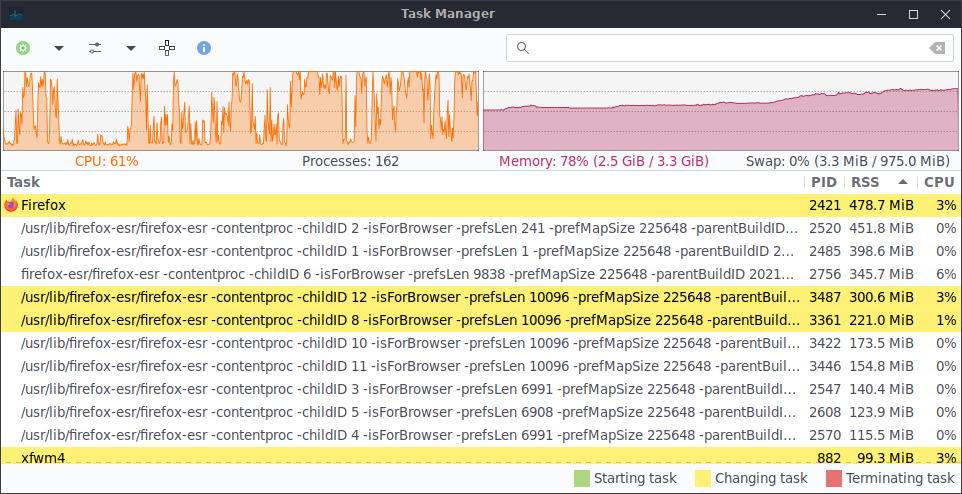
XFCE and Gnome memory usage compared

In a previous post I asked how much memory my laptop needed, and found the answer was more than ii had, so I added some

At the time I was using XFCE, but now the same laptop is running Gnome 3, so decided to compare memory usage.

XFCE used 912MB of memory when it had loaded (converted from 870MiB in the screenshot below).

Gnome uses 1.3GB when it has loaded.

With Firefox open, XFCE used 2.68GB (converted from GiB).
Gnome used 2.3GB with Firefox open.

In both cases, there were multiple active tabs open, although different web sites with different content. I didn't attempt to use the same web sites, and I am assuming that the different memory usage by Firefox was down to the different websites open in tabs at the time. Memory usage by browsers does vary wildly according to the number of tabs open and the content of those tabs.

On a computer with limited memory, XFCE can be a good option, although the memory saved can be eaten up quickly by modern web pages with their scripts, videos and images.

Both XFCE and Gnome are perfectly usable on this very low spec computer (with XFCE having a slight edge in snappiness on occasion), but adding the extra 4GB of memory has made both much more usable with a modern bowser with a dozen or more tabs open.


Tuesday, October 5, 2021

Evolution Calendar - Syncing and adding reminders

Adding events to the Evolution calendar is intuitive, so I won't go into details: click on a day, add a time and a description and the basic event entry is done.

After that I had a couple of issues that took me some time to work out.

The first was that as Gnome is integrated with my Google account, I expected the event to appear in my Android phone's calendar, but it didn't. I couldn't work out how to sync the evolution calendar with my Google account.

The answer is to select the Google calendar as the default calendar, because the local calendar (On This Computer) is set as the default.

Select your Google calendar account, right click and select Properties, then tick Mark as default calendar.

The next issue was setting reminders. As I usually forget upcoming events, I like to get plenty of reminders from my computer and phone, so I clicked on the Reminders tab and selected 15 minutes before from the drop down menu.

Gnome applications are usually intuitive to use, but I have to say this window was not. There are to my mind several problems that actually make it counter intuitive.

First of all is the infinitive in Pop up and alert: The infinitive in computer GUIs usually presents an opportunity to give a command: Play, Pause, Stop, for example. Yes, I want to Pop up and alert, what do I do about it? I expected an OK or Confirm option here. I think Alert 15 minutes before the start, or Alert set for 15 minutes before the start would be clearer. Maybe it's just me.

The second problem I had was that I like to set more than one reminder, and the Add button was greyed out. It wasn't just me here as someone else had the same problem. I wrote "was" because Evolution was updated overnight and the Add button is no longer greyed out, as you will see in the screenshot above: it sets the Custom option, which allows more than one reminder. The solution if you have a version of Evolution with the greyed out button is to choose Custom from the drop down list.


Monday, October 4, 2021

How to pixelate text in the Gimp

There are times when I want to post a screenshot, but need to obscure personal information, as in the screenshot above from my previous post. Pixelating the text is a good solution because it can make the text unreadable whilst still leaving an impression of the text. I did this some time before for a previous post, and needed to do it again today for another post, but had forgotten how to do it. This time I am going to write a quick tutorial to remind me how to do it next time, and to help anybody who might want to do the same thing.

First, open the image in the Gimp:

Then select the text you want to pixelate with the Rectangle Select Tool:

Next, cut the selection:

And paste as a new layer:

Go to Filters > Blur > Pixelise and reduce the size of your pixel blocks until the text is unreadable but still gives the impression of text. Be careful that it is not possible to still read the text if you squint - in this image I need to go one step further:

When you are happy that the text is unreadable, go to Image  > Flatten image:

And here is the final result:


Filter emails in Evolution

Here is a quick tutorial on how to filter emails in Evolution. It took me a while to work out how to do it, so I thought I'd make a note of what I did to remind myself when I inevitably forget later on, and to help anybody who wants to do the same thing.

First, right click on the folder where you want to create a new folder to put your filtered emails in. Click on (you guessed it) New Folder. I put mine in Google Mail > All Mail.

To filter emails by sender, right click on an email you want to create a filter for and select Create > Create a Filter Rule for Sender.

In the dialogue that appears, select the folder you created in the first step.

Click on Add Condition if the sender uses more than one address to send emails from. (My daughter's school has used four different domains to send emails, so I had to add four conditions.)

To apply the filter, click on Message > Apply Filter.

To filter all existing emails, select you inbox and click on Edit > Select All then  Message > Apply Filters.


Saturday, October 2, 2021

Boot message - Failed to start

Update: solved (see below).

Booting up my installation of Debian Testing (Bookworm) I noticed this message:


[FAILED] Failed to start: Raise network interfaces.

See 'systemctl status networking.service' for detials.

Was this something bad? I hadn't noticed anything like it before. The word 'FAILED' in capital letters and red made me worried.

Systemd does not apparently keep a log of these boot messages. To find a failed command, issue the following command:

# systemctl --failed

  UNIT               LOAD   ACTIVE SUB    DESCRIPTION
● networking.service loaded failed failed Raise network interfaces

LOAD   = Reflects whether the unit definition was properly loaded.
ACTIVE = The high-level unit activation state, i.e. generalization of SUB.
SUB    = The low-level unit activation state, values depend on unit type.
1 loaded units listed.

To see networking.service messages, issue this command:

# journalctl -u networking.service --no-pager
-- Boot e29338dc96c041638d5b465983e41817 --
Oct 02 18:35:32 Toshiba-laptop ifup[618]: Cannot find device "eth0"
Oct 02 18:35:32 Toshiba-laptop ifup[552]: ifup: failed to bring up eth0
Oct 02 18:35:27 Toshiba-laptop systemd[1]: Starting Raise network interfaces...
Oct 02 18:35:29 Toshiba-laptop systemd[1]: networking.service: Main process exited, code=exited, status=1/FAILURE
Oct 02 18:35:29 Toshiba-laptop systemd[1]: networking.service: Failed with result 'exit-code'.
Oct 02 18:35:29 Toshiba-laptop systemd[1]: Failed to start Raise network interfaces.


Well, that clears that up: there's no Ethernet cable plugged into this computer. 


Update: I found the source of this issue (Debian User Forums). It is not the system looking for an Ethernet connection that happens to be unplugged, but the system looking for an Ethernet connection that does not exist, due to some unexplained entries in a configuration file, namely:

/etc/network/interfaces.d/setup

The entries below were causing the system to try to bring up network interfaces at boot time. Commenting them out got rid of the "Failed" message.

auto lo 

iface lo inet loopback 

auto eth0 

iface eth0 inet dhcp/

The  only mystery now is what added those lines when they shouldn't be there? Suspicion at the moment falls on the Debian Live Non-Free installation media, which I used to install Debian Bullseye.

Monday, September 27, 2021

Installing Brother HL-1212 W-Fi Mono Laser Printer in Debian Bookworm/Bullseye (Gnome)

[Update 2: The latest version of printer-driver-brlaser works without issue now in Bookworm post release and Trixie (Testing), which both at version 6.3 at the time of writing. Bullseye still has 6.1, so the issue may remain.]

[Update: Unfortunately printer-driver-brlaser is affected by a bug that means documents with images sometimes fail to print with no error message at all. Gnome says the document has printed successfully, CUPS says the document has printed successfully, but nothing appears from the printer, not even blank pages, and the printer records no error.

Back to the driver from the Brother web site then.

See Google Groups, and Github. The driver is patched on Github but it seems there is no Debian maintainer for the package, so no hope for the moment that the Debian package affected (6.2) will be fixed any time soon.]


The Brother HL-1212 WiFi printer does not do driverless printing. See previous post. "Modern" printers don't need drivers, but budget printers like this one (still on sale at the time of writing) seem to date back a decade or two and need drivers.

Previously, I downloaded a driver installation tool from Brother (which worked very well). I am now using Debian Bookworm (Testing), and found today that Debian has included a driver for this printer it its repositories in Bullseye, namely in:

printer-driver-brlaser

Adding the printer was a very easy process. In the printer dialogue click "Add". The printer dialogue found the printer without adding the network address, although there is an option to search by IP address. Three options came up - the printer name, the printer name with some sort of address I didn't recognise appended to it, and a CUPS reference. I chose the first one and the printer entry that came up printed a test page straight away. (Gnome Software said it needed to look for additional things to install, went away and did so, and came back to say it couldn't find anything, but the printer worked anyway.) 

The printer entry contained fields for driver and address, so I selected/entered those, even though the printer seemed to work OK already.

The HL-1212W is available in the UK from Argos with four additional toner cartridges for £159.99, which is quite a good deal if you do a lot of printing.