Showing posts with label XFCE. Show all posts

Sunday, September 13, 2026

Duplicate icons for Redshift in XFCE panel

I have had a weird issue with XFCE for... I think probably for year or so, in that the Redshift icon would appear twice in the panel. I should have grabbed a screenshot, but the issue is fixed now, and the issue only happened every few weeks or so, even if I unfix it, it might be a long time before I could get one. Please imagine a screenshot of two Redshift icons in the XFCE panel in the space below..


The duplicate icons finally annoyed my CDO (that's OCD, but alphabetised!) to the point where I decided to look for a fix.

I used Google AI mode, which I find to be quite useful in that it has read all the forum posts, Github/Gitlab, Reddit, Stack Overflow, Superuser etc comments, and, if you have half an idea what you're looking for anyway, sometimes comes up with an answer you have missed before.

Which it did in this case.

The duplicate icon bug is very common with redshift-gtk on Xfce. Because redshift-gtk supports both the legacy GtkStatusIcon tray protocol and modern AppIndicators, the unified Xfce Status Tray Plugin intercepts both hooks at startup and draws two separate lightbulb icons next to each other. (Gitlab - Gnome).

In my case, the icons were not actually next to each other (which is where a screenshot would have been useful). I don't think I would have found that link with a normal search, because it actually relates to Evolution in Gnome.

As my issue was only very occasional, I suspect that the Status Tray Plugin gets its knickers in a twist during the login process from time to time.

The first fix offered was to hide the duplicate icon. A quick check in Status Tray Plugin settings showed that Redshift does appear in both Status Notifiers and Systray Icons, which I assume correspond to the legacy and modern protocols. The legacy icon can indeed be hidden by ticking the box in Systray icons.


From experience with panel icon issues (mostly with panels in script-based window managers like Openbox and IceWM), I suspected that adding a delay to the application launch might fix the issue, by avoiding the period early in login, when conflicts happen. (Google AI says "Redshift loads before Xfce finishes mapping out its D-Bus system tray interfaces", which is beyond my pay grade. "Gets its knickers in a twist" seems like a reasonable non-technical interpretation to me.)

The solution suggested is to add the following to the autostart command for Redshift, which will cause the application to wait 5 seconds before launching. 

sh -c "sleep 5 && redshift-gtk"

A similar command is suggested on the XFCE forum for a similar issue. There are differences in the format of the script used, again beyond my pay grade. I tried the AI suggestion, but as the issue was intermittent, I will have to wait and see if it worked.

Sunday, November 16, 2025

How to update Debian XFCE

I am writing this in Debian Trixie XFCE, which does not by default check for packages that can be updated (software or firmware). Not even security updates. It does not prompt the user to check for updates. It does not notify the user of updates, not just for the obvious reason that it doesn't check for updates, but because there is no update manager in XFCE. So it follows, it doesn't automatically install updates in the background.

This is not a massive oversight, it is entirely intended. XFCE is a distribution-independent desktop, which by choice does not integrate with the different Linux distribution package managers and update mechanisms.

There are some  Linux distributions that have an update manager in their XFCE desktops, but Debian XFCE leaves responsibility for updating the system to the user. It is for Linux users who want that responsibility, who want to have control over what packages are installed or uninstalled, or who perhaps are frustrated by obscure background processes which check for, notify of, or even install package updates. XFCE is not the desktop installed by default, and it is a tacit assumption that anybody installing it will have made that choice.

Manually updating Debian is not a difficult process. It involves opening the Debian Package manager GUI (Synaptic), or running some simple Terminal commands, but before I get into that, let's have a look at the situation in the default Debian desktop, Gnome.

Gnome is the default desktop of other major Linux distributions as well, all of which welcome new users, so it's no surprise they expect the desktop environment to keep users safe by notifying of updates, and "nudging" users to install them.

Gnome does check for updates, notify users of them, nudge and prompt users to install them, and install some updates automatically (Fatpaks), but details of what actually happens is a riddle, wrapped in a mystery, inside an enigma. 

If you thought users would be able to find out about the update process from the online Gnome Help pages, you'd be sadly wrong, as they are over ten years old, and refer to Gnome 2! If you want to find out about the Gnome update process, you have to read through Gnome developer discussions on software development sites.

As an example, Gnome seems to be moving to a distribution-independent method of finding available updates (Appstream), but information on that from Gnome, you're going to have to look at links like this one at discourse.gnome.org, currently the first page returned when searching for "Gnome Appstream". 

Gnome will take care of updating a Debian installation, unless a user actively resists doing what they are asked to do, but there is very little user involvement in the process. Not only is updating Debian XFCE manually a simple process, in contrast it enables involvement, control and understanding, which may be a user preference, and avoids a lot of possibly annoying slowdowns, notifications and update prompts at inconvenient time. 

How to update Debian in XFCE

1. The package manager GUI (Synaptic)

Open Synaptic, click Reload, and if there are updates, have a look at what is proposed. 

Notice in the screenshot at the top of the page that after clicking Reload, the message says:

The repositories will be checked for new, removed or upgraded software packages.

As the message implies, the update process may involve installing a new package, or removing an existing package, at least with the default system upgrade setting of "Smart Upgrade".

It is important to view the details of any new packages to be installed, and especially any old packages to be removed.

I've used Synaptic to update Linux for years, and can't remember having any issues, but there is always the possibility that removing a package will break something, usually by requiring the removal of other necessary packages. This is more of an issue in Debian development releases like Testing, where it does happen from time to time.

If in doubt, research why the removal is required, or ask at the Debian Forum.

Here's a case study of why a removal might be required from Debian Stable.

In the 11.5 point release of Debian Bullseye, libayatana-appindicator was added as a new package, which required the removal of the defunct libappindicator package. (bugs-debian-org and tracker-debian-org).

An update with Synaptic at that time would have installed libayatana-appindicator and removed the conflicting libappindicator package.

Probably the most frequent example of a new package that has to be installed is the kernel. New kernels are released containing bug fixes and security fixes. The Debian package tracker has examples of bug fix (for a point release) and security updates.

What exactly is "Smart Upgrade"? Synaptic is a front-end for Apt, the Debian package manager. Debian has two command line interfaces for Apt.

Looking at man apt-get, we find:

dist-upgrade in addition to performing the function of upgrade, also intelligently handles changing dependencies with new versions of packages; apt-get has a "smart" conflict resolution system, and it will attempt to upgrade the most important packages at the expense of less important ones if necessary. The dist-upgrade command may therefore remove some packages. The /etc/apt/sources.list file contains a list of locations from which to retrieve desired package files. See also apt_preferences(5) for a mechanism for overriding the general settings for individual packages. 
When a package is supplied as an argument, the package will be installed prior to the upgrade action.

Which doesn't mention new packages.

Looking at man apt we find:

upgrade (apt-get(8)) 

upgrade is used to install available upgrades of all packages currently installed on the system from the sources configured via sources.list(5). New packages will be installed if required to satisfy dependencies, but existing packages will never be removed. If an upgrade for a package requires the removal of an installed package the upgrade for this package isn't performed.

When a package is supplied as an argument, the package will be installed prior to the upgrade action.

full-upgrade (apt-get(8))

full-upgrade performs the function of upgrade but will remove currently installed packages if this is needed to upgrade the system as a whole.

When a package is supplied as an argument, the package will be installed prior to the upgrade action.

Notice that the apt refers to the apt-get entry, so apt is actually calling apt-get, and both commands do the same thing: add or remove packages if necessary during the upgrade. apt is supposed to be better for user interaction, and apt-get for scripting, so I'm going with apt.

2.  The Terminal (Apt)

# apt update

# apt full-upgrade

("Update" being the equivalent of Reload in Synaptic. ) 

update (apt-get(8))

update is used to download package information from all configured sources. Other commands operate on this data to e.g. perform package upgrades or search in and display details about all packages available for installation.

As with Synaptic "Smart Upgrade", before going ahead with the full-upgrade, check if any new packages are to be installed, or existing packages removed.

At this point it is possible to do a "Safe Upgrade",  using the command

# apt upgrade

which as stated in the manual entry above, will install new packages but not remove existing ones, as well as installing available upgrades. The reasons for any proposed removal can then be investigated (see the link given).

 3. The Terminal (Aptitude)

Another Terminal option is Aptitude, a command line front end for Apt, with a menu system. 

# aptitude update

And either a full or safe upgrade:

# aptitude full-upgrade

# aptitude safe-upgrade

 See, man aptitude for the details:

full-upgrade

Upgrades installed packages to their most recent version, removing or installing packages as necessary. It also installs new Essential or Required packages. This command is less conservative than safe-upgrade and thus more likely to perform unwanted actions.

However, it is capable of upgrading packages that safe-upgrade cannot upgrade.

safe-upgrade

Upgrades installed packages to their most recent version. Installed packages will not be removed unless they are unused (see the section “Managing Automatically Installed Packages” in the aptitude reference manual). Packages which are not currently installed may be installed to resolve dependencies unless the --no-new-installs command-line option is supplied.

It is sometimes necessary to remove one package in order to upgrade another; this command is not able to upgrade packages in such situations. Use the full-upgrade command to upgrade as many packages as possible

If all of this seems a bit confusing, well it is. The Debian Wiki says:

Debian offers several package managers. They all use the same underlying technology, so it's fine to try them out and see which one you like best. 

But also

Online examples often recommend apt-get - it's the most widely available, so authors get fewer confused replies that way. Use whichever package manager they recommend while following the example, then go back to using your favourite when you're done.

The Debian manual says:

Aptitude is the recommended package manager for Debian GNU/Linux systems.

(It doesn't say why) but gives apt-get as an alternative and apt-get dist-upgrade as the update command (which as mentioned before is the command called by apt full-upgrade)but also says:

Note that aptitude is not the recommended tool for doing upgrades from one Debian GNU/Linux release to another. Use apt-get instead.

Ho hum! The somewhat contradictory information above lead to my investigations for this post, and I think the take-away is, as the Wiki says, use whichever method you prefer.

XFCE users who would like a panel indicator for available updates may be interested in my Genmon plugin script. 

The "click" can be configured to run Synaptic, apt full-upgrade or aptitude full-upgrade, all of which I have used to update Debian XFCE without issue.

References

https://wiki.debian.org/AptCLI

https://wiki.debian.org/DebianPackageManagement 

https://www.debian.org/doc/manuals/debian-faq/uptodate.en.html


Monday, September 29, 2025

A look at XFCE in Debian Trixie

I haven't written about XFCE in Debian for a while. I've noticed that one of my old posts, A look at XFCE in Debian Wheezy, is getting quite a few hits. It's a post from 12 years ago, so I can only imagine that people are really looking for something more current, so it's probably time for an update.

When writing the previous post, I was using a machine that originally came with Windows XP. This time I'm writing on a machine that originally came with Windows 8. The points I made then still apply: XFCE runs quite happily on older hardware, and it's a bit old-fashioned in its desktop paradigm, which may or may not appeal to users.

An interesting point to make is that at the time of writing the previous post, there were a lot of complaints about the performance of Windows 8 on low-spec computers (which this is). XFCE on this machine performs perfectly well, as it does on my even older laptop from the Windows 8 period.

I haven't touched a Windows machine for almost a decade, but I have noticed that Windows 10 has reached its end of life, and that Windows 11 will not run on older, lower spec machines, ones that would be a lot more modern and more powerful than this computer. Deja vu?

This would be a good opportunity to point out that computers running Windows 10 that can't update to Windows 11 will run Linux quite happily for many years to come!

There are of course Linux distributions that are aimed at new users. XFCE in Debian comes very much as shipped by XFCE. There is no welcome screen, there are no tutorials, no helpful system tools, no update, software or driver managers, no system snapshot tool, and no customisation to the desktop panel positions, theme or icons.

Screenshot of the Debian Trixie live image

Screenshot from xfce.org

If you fancy a more bare bones approach, getting to grips with Debian system tools, and customising the desktop to your own preferences, Debian XFCE does offer legendary stability. This is often assumed to be implied by the name of the current release, Debian Stable, but stable in the name means "doesn't change much" rather than "doesn't fall over". Packages are tested during the two-year development process, and then receive only security updates and minor fixes after release. The corollary of this process is that Debian doesn't fall over very often, as bugs are knocked out during testing, and not introduced by package upgrades after release.

This is especially advantageous for older computers, as support for newer hardware can be lacking in the Stable release. My two older machines had a few minor glitches with Debian when new, but now run it faultlessly.

Over the years I have written about a few niggles with Debian XFCE: problem panels and unwanted saved sessions, ugly fonts, suspend doesn't work when the screen is locked, confusing power management behaviour, no icons for special folders in the home directory in the default theme, authentication dialog for root privileges broken, and media playback and non-free firmware not enabled by default.

I am happy to say that non of these is an issue any more, although the suspend/lock screen issue will require a bit of manual intervention until the XFCE fix is implemented properly in Debian (see the post for details). 

One new option in Trixie XFCE worth mentioning is Docklike Taskbar, which is available after installing the package xfce4-docklike-plugin.

It provides a Windows 7/8 (or Linux KDE) method of Windows switching, shown above in an XFCE bottom panel, with option window preview enabled.

It also addresses one of my previous complaints about XFCE: application quick launchers can be added to the panel, but running appear separately. Docklike Taskbar combines quick launch icons with window switching icons.

The default XFCE layout has quick launch icons in a bottom "mock dock" panel, and running application buttons in the top panel. For those who like the layout, I think Docklike Taskbar would be a better option in the bottom panel, combining quick launch and windows switching.

For those who prefer a single bottom panel, here's an extreme example:

Quick launchers and iconified window buttons.

Combined launcher/switcher buttons in Docklike Taskbar (running applications are underlined).

As mentioned previously, Debian does not customise the appearance of XFCE at all. The icons used in the screenshots above are a mixture of Arc and Papirus, the theme is Arc-Lighter, and there is a single bottom panel.

Customising  XFCE by changing the theme, icon theme and panel layout is a simple process. Here is my current preference, to compare with the defaults above.

 With the Debian Trixie wallpaper.

 With the XFCE wallpaper.

With applications open, using the old-school window buttons.

As mentioned above, Debian XFCE does not come with an update manager. The update notification in the second screenshot is my own Genmon script. an update with the latest version is coming soon, so keep watching the blog!

A final thing to say about XFCE 4.20 is that Wayland is available as an experimental option. Keep watching for a post about that too. 


Sunday, June 22, 2025

Failed to mount NTFS volume in Thunar

(Error mounting /dev/sdd1: wrong fs type, bad option, bad superblock, missing codepage or helper program, or other error.)

I have an external HD connected to the television which contains TV programmes and Films. Recently I connected it to my Debian Trixie computer to transfer an new film, and got the error dialogue above in the XFCE file manager.

Strangely, I could mount and access the HD drive using

mount /dev/sdd1 /mnt/my_drive

Unix & Linux at StackExchange

 I found the following at the Manjaro forum

The newer kernels now use the in-kernel ntfs3 driver, which often fails. When you are mounting them manually, you are using ntfs-3g as the driver, which is the one that works. By blacklisting ntfs3, you make sure that it’ll always use ntfs-3g diver.
To extend this:

ntfs3 fails if damage to an NTFS formatted drive is found; or, rather, if an indicator of damage (commonly called a dirty bit) is found.

ntfs-3g ignores this, and mounts the NTFS partition, regardless.

The important point here is that the NTFS filesystem may still be damaged, as you blissfully continue using the drive.

If an error exists, it must be corrected using chkdsk within a Windows environment. This can be achieved by launching an administrative command prompt.

That seems to explain why I could mount the HD from a command line but not in Thunar, but Uh-Oh, I don't have a Windows computer. (The HD came formatted that way, and the TV won't use any other format.)

I downloaded a Windows repair disk, but it wouldn't boot on this old computer.

Then I came across this post, also at the Manjaro Forum

Use “Disks” , find your drive and repair filesystem option. Worked for me.

Worked for me too!

Was the file system actually damaged, or was it this bug?

Whatever the reason, it seems Debian has more than one NTFS driver, and a different driver may be used by different applications. Something to bear in mind.


Wednesday, June 4, 2025

Authentication dialog for root privileges broken in Debian Trixie XFCE

Update: this issue was fixed in XFCE 4.20.1:

 xfce4 (4.20.1) unstable; urgency=medium

  * d/control: update standards version to 4.7.2
  * d/control: recommends mate-polkit (Closes: #1090384)

 -- Yves-Alexis Perez <corsac@debian.org>  Sat, 19 Jul 2025 18:32:45 +0200

 ------------------------------------

 
Above is a screenshot of the dialog in action so you know what I mean.

The dialog appears launching Synaptic package manager, unlocking printer settings or launching LightDM Greeter settings.

Or should. On new installs of XFCE in Debian Trixie it will fail silently, and nothing will happen when clicking on the relevant menu item or button.

The reason is that the agent required to bring up this dialog (policykit-1-gnome) has been removed from Debian Testing because it's an ancient Gnome package which is no longer maintained. See this bug report.

The removal of policykit-1-gnome has affected XFCE because it is a recommended install with at least one XFCE package that I can see (Thunar) but not a direct dependency of XFCE. XFCE relies on it being there, but does not actively ensure that it is there.

Other DEs that rely on the package like Mate and LXDE have noticed that the writing was on the wall for policykit-1-gnome and produced their own version of the package, namely mate-polkit and lxpolkit.

Other Linux distributions have noticed the same thing and released a package to fulfil the same function in XFCE, for example xfce-polkit in Arch.

There is now a Debian bug report for this rather crucial to the desktop missing agent. Somebody has come up with an agent for Debian (also called xfce-polkit), but it hasn't made it into Trixie, according to this bug report.

So, at the moment, for new installs of Trixie, there are going to be issues such as Synaptic filing to launch. See this topic on the Debian forum. (Anybody with a Trixie install predating the removal will still have policykit-1-gnome installed and not experience the issue.

The solution? For the moment, install lxpolkit or mate-polkit, or compile the proposed Debian xfce-polkit package yourself. (The screenshot at the top is Debian xfce-polkit.)


Saturday, March 8, 2025

Power Manager in Debian Trixie XFCE and lock screen settings

Depending on the time of reading this, you may be wondering why lock screen settings are not working in XFCE Power Manager in Debian Trixie, or why lock screen settings have changed, or rejoicing that a long-standing bug in Power Manager has been fixed.

Let me explain. XFCE 4.20 in Debian Trixie has dropped light-locker: 

There is no dedicated "security" tab anymore. Lock screen management was massively simplified and "Light Locker" was dropped. "lock-on-sleep" is now synchronized with xfce4-session and xfce4-screensaver. Screen locking settings are now only handled by xfce4-screensaver to avoid conflicts. A button to open xfce4-screensaver-preferences was added.

 XFCE 4.20 tour

Unfortunately, xfce4-screensaver has not been made a dependency of Power Manager, meaning the user will not be able to change lock screen settings. See this topic on the Debian User Forum. There is a bug report for this issue. The good news is that removing light-locker and installing xfce4-screensaver gets everything working nicely.

More good news is that this change side-steps an eleven year old bug which meant that suspend would not work with the screen locked using light-locker. See my blog post on the issue, the Debian Wiki on the issue, and the bug report.

So, if you are using Debian Trixie XFCE at the time of writing, you may have come to this post seeking an answer as to why you can't change lock screen settings any more. If you are reading at some point in the future where xfce4-screensaver has been added as a dependency, you may have noticed a change in XFCE Power manager, the absence of the Security tab, or the presence of a new Screensaver Management button.

Whatever the case, Power Manager in XFCE 4.20 in Debian Trixie using xfce4-screensaver is now a joined-up and rational, rather than the dog's breakfast it was in the past (see my post from 2013), and finally bug-free after over a decade. Happy days!


System sounds in Debian XFCE

If you look under the Settings tab of the XFCE Appearance application, you will find two options under Event sounds, Enable event sounds and Enable input feedback sounds. (Quite why a sound setting would be in the Appearance menu is a bit of a mystery, but hey-ho.)

In Debian at least, ticking these options seems to have no effect. It hasn't really bothered me for years, but I thought I would investigate if it is possible to enable system sounds.

As is often the case with Linux issues, I came across various suggestions on the issue dating back over a decade. This is what worked for me. First install package libcanberra-pulse, and check that System sounds are enabled in the audio mixer.

This got me some system sounds. Changing audio volume in the audio mixer (but not from the panel icon) produced a sound.

Other system sounds required package libcanberra-gtk3-0, and exporting a GTK module, which as far as I can work out makes the kernel aware that GTK events should trigger a system sound. The instructions are at ubuntuforums.org. They date from 2012, but still seem to be necessary and work.

The default sound theme installed has sound for a limited number of events, so I installed the Smooth sound them which has more.

Here are my sources of information:

How to enable system sounds forum.xfce.org

[Solved] System Sounds forum.xfce.org


Thursday, March 6, 2025

13 year old bug in Tango icons fixed in Debian!

The default icon theme in Debian XFCE has had an annoying bug for a very long time. I wrote about it in 2013, but the issue was reported as a bug in 2011. (See bugs.freedesktop.org for the original bug report and gitlab.freedesktop.org for more information.)

There were no icons for special folders in the home directory with the Tango icon theme, meaning that these folders defaulted to the Gnome icon theme, as shown in this screenshot from the Gitlab bug report:

The Tango icon project has been dead for 16 years, but Matteo Bini has forked the Tango icon theme to include XDG user directory icons (as well as other fixes).

The forked package has replaced the original Tango icon theme in Debian Testing, so the next release of Debian will have icons for special folders in XFCE at last, and the home directory will look like this:

Personally I prefer the look of the Papirus icon theme, but at least now the default icon theme will not have this annoying bug.

The Tango icon theme is still a bit dated in some ways. For example, the Synaptic icon is a box a CD and a floppy disk.

Hands up anybody who can remember installing software from a floppy disk, and if you do, doesn't getting old suck?


Saturday, July 8, 2023

Desktop icons and menu not showing

Debian is working do smoothly these days I rarely have anything to post about (currently Trixie/Testing).

But today I noticed that there were no icons on my desktop, and the right click menu wasn't appearing (I rarely ever see my desktop, as XFCE restores my previous session at boot).

The solution was to delete ~/.cache/sessions/, as suggested in this topic at the Arch Linux Forum.

Monday, January 2, 2023

Action buttons in notify-send notifications

Search for "action button notify-send", and the first two results currently say "It seems notify-send can't do this", or "No, notify-send doesn't support the use of actions/buttons", which isn't true any more.

This action was added about a year ago.

gitlab.gnome.org

From the manual:

OPTIONS

       -A, --action=[NAME=]Text...
           Specifies the actions to display to the user. Implies --wait to
           wait for user input. May be set multiple times. The NAME of the
           action is output to stdout. If NAME is not specified, the numerical
           index of the option is used (starting with 1).

Action buttons return a specified output (or an output of 0, 1... if no output text is specified). If they are not clicked, output is null. Thus

--action=yes=Okay --action=no=Cancel

Returns "yes", "no" or null.

--action=Okay --action=Cancel

Returns "0", "1" or null.

Output can be redirected to a text file and used to run a command:


#!/bin/bash
notify-send --icon=system-software-update -w --action=yes="Click to update" "Updates available" > output.txt
action=$(cat output.txt)
if [ "$action" == "yes" ]; then
synaptic-pkexec
fi


or to a function:


#!/bin/bash
action=$(notify-send --icon=system-software-update -w --action=yes="Click to update" "Updates available")
if [ "$action" == "yes" ]; then
synaptic-pkexec
fi


which seems like a better way to do it.

To have the number of updates in Debian:

 #!/bin/bash
updates=$(aptitude search '~U' | wc -l)
action=$(notify-send --icon=system-software-update -w --action=yes="Click to update" "$updates Updates available")
if [ "$action" == "yes" ]; then
synaptic-pkexec
fi

This can be used in my update notification Genmon script for XFCE.


Update: If used with Genmon script, add the following to refresh the Genmon panel notification after the update:

if [ "$action" == "yes" ]; then
synaptic-pkexec && sleep 2 && xfce4-panel --plugin-event=genmon-<n>:refresh:bool:true
fi

Where <n> is the Genmon ID number obtained by hovering over the Genmon item item in Panel Preferences > Items.

Sunday, June 5, 2022

A panel task switcher for XFCE on Debian

In Gnome of course you can see all your open windows and switch between tasks with Alt+Tab. In Windows you can do this with a panel button - something which I wondered a decade ago whether might be possible in Linux. Always prompt to find and answer to issues, I offer you, ten years later, Skippy-XD, full screen task switcher for X11.


Skippy-XD is not available from the Debian repositories. You can compile it from source, or cheat like me and get it from MX Linux as a Debian package. I tested the MX 19 package on Debian Testing. It works, but may not necessarily be as stable as something from the Debian repository.

To add Skippy to the XFCE panel, add a launcher to the panel with the command

skippy-xd –activate-window-picker

The screenshot above is not the default appearance. By default, the uppermost window on the desktop is tinted and the lower windows are slightly transparent,  windows are without icons, and windows appear on the screen as is when Skippy is activated, so if you have multiple windows visible on the desktop, Skippy will display the same windows on top of themselves, but transparent, which can be a bit difficult to view. I have edited the configuration file to remove transparency and tint, have an icon on the windows, and use the desktop wallpaper as a background.

To change settings, copy the configuration file from /etc/xdg/skippy-xd.rc to ~/.config/skippy-xd/skippy-xd.rc 

I edited these lines of the configuration file:

clientDisplayModes = thumbnail-icon icon filled none 

[Displays an image of open windows with the icon of the application superimposed, and falls back to just an icon when an image is not available - if the window is minimised or on another workspace.]

background = tile /home/<user>/homeworld.png 

[.svg wallpaper files don't work.]

[normal] 

# tint = black 

tintOpacity = 0 

opacity = 255 

[highlight] 

#tint = #101020 

tintOpacity = 0 

opacity = 255 

[No transparency, no tint.]

[tooltip]

border = #404040 

background = #404040

[No white border.]

For anyone curious, the dock in the screenshot and video above is the XFCE docklike plugin, also available for Debian from MX Linux.


Tuesday, May 31, 2022

Suspend won't work when screen locked in XFCE


If you set the screen to lock after a certain period in XFCE, and the computer to suspend after a further period, you may encounter the above message when you come back to the computer: the screen has blanked but the computer hasn't suspended. The message is (for search engines):

Authentication is required to suspend the sytem. Action: org.freedesktop.login1.suspend. Vendor: The systemd Project.

The XFCE settings for this are:

Power Manager > System > System Power Saving > Suspend / When inactive for 30 minutes.

and

Power Manager > Display > Display Power Management > Blank after 15 minutes

and

Power Manager > Security > Light Locker > Automatically lock the session / When the screensaver is activated

This does not happen if the screen is set to blank but not lock, and to lock when the system suspends, with the settings:

Power Manager > Security > Light Locker > Automatically lock the session / Never

and

Power Manager > Security > Light Locker > Lock screen when system is going to sleep

A solution (if you would like to lock the screen when it blanks and have the system suspend at a later time) is

Add a file 

/etc/polkit-1/rules.d/85-suspend.rules

(NB this involves creating a directory and a file in it - read to the end if you need instructions for this.)

with: 

polkit.addRule(function(action, subject) { 

 if (action.id == "org.freedesktop.login1.suspend" && 

 subject.isInGroup("<your user name>")) { 

 return polkit.Result.YES; 

} 

}); 

And in Terminal, type: 

# chmod 755 /etc/polkit-1/rules.d 

# chmod 644 /etc/polkit-1/rules.d/85-suspend.rules 

Then reboot.

This is a slightly modified version of a solution posted by mja at askubuntu.com. Why? Because the solution there uses:

subject.isInGroup("users")) {

But the group "users" does not exist by default, and its use in not recommended according to the Arch Wiki. Using my user name (which is also a group by default) worked for me.

So if your user name is fred, use

subject.isInGroup("fred")) {

Note that mja also points out that the first solution on the Ask Ubuntu site involving the 

org.freedesktop.login1.policy

file is not recommended according to the Arch Wiki site because the file could be overwritten at a later date.

The Debian Wiki has a solution to the same problem which involves the rules file and the policy file, but does not mention the need to create the group users.

For me, using the rules file was enough to solve the issues.

The Debian Wiki does give instructions for creating the rules.d directory:

# mkdir /etc/polkit-1/rules.d

so check it out if the process is unclear.


Monday, February 14, 2022

XFCE Docklike Plugin on Debian Bullseye Live

Traditionally on XFCE you would have a menu button and window buttons in the panel. You could create a launcher for an application in the form of an icon, and have window buttons in the form of icons for running applications. With the obvious disadvantage that you would have two application icons on the panel, where really you only need one (taskbars can contain a pinned launcher which, when the application is running, can also be used to switch to the application).

There is now such a taskbar available for XFCE, called xfce-docklike-plugin. It's not in the Debian Bullseye repository, so it's necessary to download, build and install it.

Unless you cheat and use the MX Linux repository based on Debian Bullseye. MX Linux XFCE edition is using the plugin as it's default window switcher. The repository is here. Tested on Debian Live XFCE non-free. You will need to install

xfce-dev-tools

Wednesday, October 6, 2021

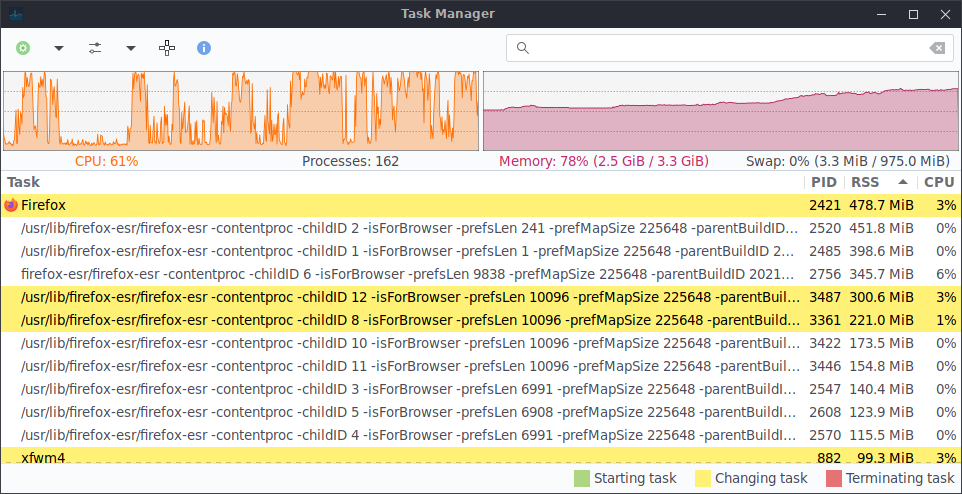
XFCE and Gnome memory usage compared

In a previous post I asked how much memory my laptop needed, and found the answer was more than ii had, so I added some. 

At the time I was using XFCE, but now the same laptop is running Gnome 3, so decided to compare memory usage.

XFCE used 912MB of memory when it had loaded (converted from 870MiB in the screenshot below).

Gnome uses 1.3GB when it has loaded.

With Firefox open, XFCE used 2.68GB (converted from GiB).
Gnome used 2.3GB with Firefox open.

In both cases, there were multiple active tabs open, although different web sites with different content. I didn't attempt to use the same web sites, and I am assuming that the different memory usage by Firefox was down to the different websites open in tabs at the time. Memory usage by browsers does vary wildly according to the number of tabs open and the content of those tabs.

On a computer with limited memory, XFCE can be a good option, although the memory saved can be eaten up quickly by modern web pages with their scripts, videos and images.

Both XFCE and Gnome are perfectly usable on this very low spec computer (with XFCE having a slight edge in snappiness on occasion), but adding the extra 4GB of memory has made both much more usable with a modern bowser with a dozen or more tabs open.


Friday, March 12, 2021

XFCE Genmon weather script - New & Improved

Update: A commentor has pointed out that the output of ansiweather has changed since this post, adding an extra space which means all the printed outputs are wrong, because they are done according to position in the output. I had already corrected the script for myself but hadn't got round to editing the post. I can't remember if I have corrected all the "print" commands to reflect the line space change, or just the ones I use. If any output is garbled, please post a comment and I'll look at the script again.

The corrected script is here: GenMon weather script at PasteBin.

Thanks to Anonymous for pointing this out.

I tidied up the old script and added new information available from ansiweather (which the script requires). I made it easy to choose which information to display and the units of measurement by commenting out lines.

And added a notification icon if there is no internet.

The script only requires you to add a city and country once at the top. There are various options for what happens when you click the temperature- go to the website, refresh, or show ansiweather in a terminal. Make sure only the one you want is uncommented. If you choose the refresh option, you will need to find the Genmon ID in your panel, as this varies. Hover over Genmon in Panel Preferences>Items.

As before, save the script in a suitable location and make it executable. Add an instance of Genmon in the panel, enter the path to the script and choose a suitable refresh time in seconds.


#!/bin/bash
#dontsurfinthenude.blogspot.com/

location=paris,fr
#try city,country code or look up at openweathermap.org
data_metric=$(ansiweather -l $location -u metric -s true -a false -d true)
data_imperial=$(ansiweather -l $location -u imperial -s true -a false -d true)
#comment out one if you want only metric or only imperial
data7day=$(ansiweather -l $location -u metric -s true -a false -f 7) #centigrade
#data7day=$(ansiweather -l $location -u imperial -s true -a false -f 7) #fahrenheit

city=$(echo "$data_metric" | awk '{print $3}')
temp=$(echo "$data_metric" | awk '{print $5$6}') #city,temp,°C
#temp=$(echo "$data_imperial" | awk '{print $5$6}') #city,temp,°F
symbol=$(echo "$data_metric" | awk '{print $7}')
#wind=$(echo "$data_metric" | awk '{print $9,$11,$12,$13}') #wind,m/s
wind=$(echo "$data_imperial" | awk '{print $9,$11,$12,$13}') #wind,mph
humidity=$(echo "$data_imperial" | awk '{print $15,$17$18}') #humidity
pressure=$(echo "$data_metric" | awk '{print $20,$22,$23}') #pressure,hPa
#pressure=$(echo "$data_imperial" | awk '{print $20,$22,$23}') #pressure,inHg
sunrise=$(echo "$data_metric" | awk '{printf "%7s %.5s %s\n", $25,$29,$30}') #sunrise
sunset=$(echo "$data_metric" | awk '{printf "%-7s %.5s %s\n", $32,$36,$37}') #sunset

forecast=$(echo "$data7day" | awk 'BEGIN {format="%s %7s%s  %s\n"} #7-day-forcast
            {printf format, $4,$7,$8,$9}
            {printf format, $11,$14,$15,$16}
            {printf format, $18,$21,$22,$23}
            {printf format, $25,$28,$29,$30}
            {printf format, $32,$35,$36,$37}
            {printf format, $39,$42,$43,$44}
            {printf format, $46,$49,$50,$51}')


PANEL="<txt>$temp</txt>"
PANEL+="<txtclick>firefox --new-tab --url https://openweathermap.org/city/$location[city code number]</txtclick>"
#PANEL+="<txtclick>xfce4-panel --plugin-event=genmon-*:refresh:bool:true</txtclick>"
#Replace "*" with the ID number from the XFCE panel - Preferences>Items (Hover)
#PANEL+="<txtclick>xterm -hold -e  ansiweather -l $location -s true -f 7</txtclick>"

TOOLTIP="<tool>"
TOOLTIP+="<span weight='bold' font='sans regular'>W E A T H E R</span>\n\n"
TOOLTIP+="<span font= 'sans regular'>$city</span>\n"
TOOLTIP+="Now: $temp $symbol\n\n"
#TOOLTIP+="<span font= 'sans regular'>$wind</span>\n"
#TOOLTIP+="<span font= 'sans regular'>$humidity</span>\n"
#TOOLTIP+="<span font= 'sans regular'>$pressure</span>\n\n"
TOOLTIP+="<span font= 'monospace regular'>$forecast</span>\n\n"
TOOLTIP+="<span font= 'sans regular'>$sunrise</span>\n"
TOOLTIP+="<span font= 'sans regular'>$sunset</span>\n\n"
#TOOLTIP+="<span weight='bold' font='sans regular'>Click to update</span>"
TOOLTIP+="<span weight='bold' font='sans regular'>OpenWeather</span>"
TOOLTIP+="</tool>"


if [[ -z "$data7day" || "$data7day" == "ERROR: Cannot fetch weather data" ]]; then

echo "<icon>network-offline</icon>"
echo "<tool>No Internet</tool>"
else
  echo -e "${PANEL}"
  echo -e "${TOOLTIP}"
fi

[Edit: you will have to go to openweather.org and search for the city code number for your town if you want to open the web page on clicking the icon. The script passed the town and city details to the browser, but my browser was opening the correct location because I'd used the page before.]


Tuesday, March 2, 2021

How much memory does a laptop need?

I bought a laptop in 2003 which had a single core CPU, a 30GB hard disc, and 256MB of RAM. It used to grind to a halt if I opened too many programs.

This laptop was a cheap, low-end laptop, bought in 2015. It has a dual core CPU, a 500GB hard drive, and 4GB of RAM. (And was a sixth of the price of the previous one.)

That is sixteen times as much memory.

But it still sometimes grinds to a halt if I have a lot of programs open. The program I'm working in works OK, but switching to another program can take a long time. Why? Because the memory is full and background programs have been moved to swap, or virtual memory as it's called in Windows. (I'm using XFCE.)

How come a computer with sixteen times as much memory as my 2003 laptop still doesn't have enough? Let's have a look.

The graphics card takes a 700MB bite out of memory before the OS (Debian Linux) loads. XFCE is a light desktop, but even then, the OS and desktop alone takes up almost 870MB of memory.

Let's open up Firefox.

Memory usage jumps to 1.5GB, 47%, with a dozen or more tabs open from yesterday. But those tabs are blank, with the contents cached to the hard drive. Let's look at each tab so the contents are in memory.

78% memory usage, 2.5GB. Now let's open another program.

86% memory usage, 2.8GB, and the computer is starting to use swap memory - writing memory to the hard disc. Swap memory is 9% full.

Later in the day, after several hours use:

93% memory use, 3GB, with swap 69% full, 675MB. Switching between programs and tabs is now going to be slow, as the computer has to retrieve memory from the hard disc.

Time to close a few tabs in Firefox:

The biggest memory hog is obviously Firefox, but at least part of the reason for this is that web pages are now huge. Back in 2003 I was using dial-up, and web pages weren't full of images and videos and scripts because it would have taken a day to load one of today's pages.

It seems the answer to the question in the title is: more than 4GB.

The good news is my laptop has a free memory slot, and I found an identical memory card to the one installed for a reasonable price on ebay. 

In a few days the laptop will have 8GB, which seems to be the recommended minimum these days. I will post again on how much of an improvement in performance I see.


Sunday, February 28, 2021

A simple weather notification for the XFCE panel

[Update: New & Improved version available.]

This is a very minimalistic weather applet for the XFCE panel using data from OpenWeather via ansiweather, a terminal shell script.  The applet uses the XFCE Genmon plugin to run a simple script. XFCE does have a weather plugin for the panel, but this is a)much simpler and b)an excuse to play with writing scripts.

A bit chilly this morning, as you can see. (The orange icon, in case you wondered, is my previous adventure in scripting, an update notification for the XFCE panel.)

The tooltip shows a five day forecast. Clicking on the temperature in the panel can refresh the data, open a terminal to view the source data in a terminal, or go to the OpenWeather web page for your town where you can see an eight day forecast.

To use the applet:

1. install ansiweather, 

2. find your location at OpenWeather and replace <city,country code, eg London,UK> and the city code ******* in the URL as appropriate. Also find the right number to replace the * in  genmon-*, if you want a click to refresh the applet. The method is described in a comment in the script.

3. remove the # before the click command you want.

4. copy the script into a .sh file and make it executable.

5. add an instance of Genmon to the panel, enter the path to the .sh file and a refresh time in seconds, and save.

#!/bin/bash
temp=$(ansiweather -l <city,country code, eg London,UK> | awk '{print $6$7}')
forecast=$(ansiweather -l <city,country code, eg London,UK> -s true -a false -F | awk '{print $1 "\n\n" $4,$7,$8,$9 "\n" $11,$14,$15,$16 "\n" $18,$21,$22,$23 "\n" $25,$28,$29,$30 "\n" $32,$35,$36,$37 "\n" $38,$41,$42,$43}')

PANEL="<txt>$temp</txt>"
PANEL+="<txtclick>firefox --new-tab --url https://openweathermap.org/city/*******</txtclick>"
#replace ******* with the code number for your city
#PANEL+="<txtclick>xfce4-panel --plugin-event=genmon-*:refresh:bool:true</txtclick>"
#You will need to obtain the number in genmon-* by going to panel>preferences>items and hovering over the instance of Genmon
#PANEL+="<txtclick>xterm -hold -e  ansiweather -l <city,country code, eg London,UK> -s true -f 7</txtclick>"

TOOLTIP="<tool>"
TOOLTIP+="<span weight='bold' font='sans regular'>Forecast</span>\n\n"
TOOLTIP+="<span font= 'monospace regular'>$forecast</span>\n"
#TOOLTIP+="<span weight='bold' font='sans regular'>Click to update</span>"
TOOLTIP+="<span weight='bold' font='sans regular'>OpenWeather</span>"
#Change to suit the click action you choose
TOOLTIP+="</tool>"

echo -e "${PANEL}"
echo -e "${TOOLTIP}"

[Update: Here is an alternative script with a nicer column format:

NB the temperature column will accommodate six characters, so "-5/-10" would be OK, but "-15/-10" wouldn't. Change %6s (a six character string) to %7s if you live somewhere that never gets above minus double digits in the winter. If you live somewhere temperate that never gets into double-digit cold, %5s  will be OK and look better. Screenshot below is %6s.

#!/bin/bash
city=$(ansiweather -l london,uk | awk '{print $4}')
temp=$(ansiweather -l london,uk | awk '{print $6$7}')
forecast=$(ansiweather -l london,uk -s true -a false -F | awk '{printf "%s %6s%s %s\n%s %6s%s %s\n%s %6s%s %s\n%s %6s%s %s\n%s %6s%s %s\n", $4,$7,$8,$9,$11,$14,$15,$16,$18,$21,$22,$23,$25,$28,$29,$30,$32,$35,$36,$37}')

PANEL="<txt>$temp</txt>"
PANEL+="<txtclick>firefox --new-tab --url https://openweathermap.org/city/*******</txtclick>"
#PANEL+="<txtclick>xfce4-panel --plugin-event=genmon-*:refresh:bool:true</txtclick>"
#PANEL+="<txtclick>xterm -hold -e  ansiweather -l london,uk -s true -f 7</txtclick>"

TOOLTIP="<tool>"
TOOLTIP+="<span weight='bold' font='sans regular'>Forecast</span>\n"
TOOLTIP+="<span font= 'monospace regular'>$city</span>\n"
TOOLTIP+="<span font= 'monospace regular'>$forecast</span>\n"
#TOOLTIP+="<span weight='bold' font='sans regular'>Click to update</span>"
TOOLTIP+="<span weight='bold' font='sans regular'>OpenWeather</span>"
TOOLTIP+="</tool>"

echo -e "${PANEL}"
echo -e "${TOOLTIP}"

Replace london,uk and * as appropriate.]


[Edit: removed superfluous variable entries from script.]

Thursday, February 18, 2021

Update notifications in Debian XFCE Part 2

XFCE in Debian does not notify the user of available updates. In this post I'm going to show two methods of getting update notifications. Before using either of these methods, it's necessary to configure Debian's package manager APT to check for available updates, as described in my previous post.

It's also necessary to install aptitude, which is a text-based terminal front end for APT.

Method 1: using Conky

Conky is a system monitor which can be used to output the result of a terminal command to the desktop. Here, it is writing the output of the following command to the desktop:

aptitude search "~U" | wc -l

Which tells aptitude to search APT for updatable packages, count and list them. (Found on the bunsenlabs forum.)

The line in my Conky config file is:

${color grey}Available updates:$color ${execi 3600 aptitude search "~U" | wc -l}

Which tells Conky to execute the command every hour. Add Conky to Application Autostart in XFCE. The command conky -d -p 12 runs Conky as a daemon with a 12 second delay - Conky can get buried if a non-system wallpaper is applied after the desktop starts.

The full Conky script is at the bottom of the post for reference.

Method 2: using Genom in the XFCE panel

The disadvantage of the first method is that many people don't see their desktop very often. With the second method, the notification is in the panel, so it's easy to notice.

Genmon is an XFCE plugin that monitors terminal commands and outputs the result to the XFCE panel. So in this case, Genmon is monitoring the output of the same command we used in Conky but showing the result in the panel, alongside an icon which only appears when updates are available.

Genmon can also use the XFCE tooltip to display a list of available updates from the output of this command:

aptitude -F%p search '~U'

Which returns the names of updatable packages.

The panel icon is also clickable and can be configured to update the system.

Credit for the Genmon script goes to alkusin.net, where an XFCE update script is mentioned, although I had to use waybackmachine to find it. 

I modified the script to work with Debian, and added the <iconclick> command, which was added to Genmon recently and allows the script to use system icons. Most icon themes have a software update icon in the Status folder somewhere, although the name may vary.

Here is the Genmon script:

#!/bin/bash
updates=$(aptitude search '~U' | wc -l)
details=$(aptitude -F%p search '~U')

PANEL="<icon>software-update-available</icon>"
PANEL+="<iconclick>./update-script.sh</iconclick>"
PANEL+="<txt><span size='6000' rise='8000'>$updates</span></txt>"

TOOLTIP="<tool>"
TOOLTIP+="<span weight='bold'>Available updates: $updates</span>\n"
TOOLTIP+="$details\n"
TOOLTIP+="<span weight='bold'>Click icon to update</span>"
TOOLTIP+="</tool>"

if [ $updates -gt 0 ]; then
  echo -e "${PANEL}"
  echo -e "${TOOLTIP}"
else
  echo ""
fi

The script has to be saved as a text file with the .sh suffix and made executable (Properties > Permissions in Thunar). Then enter the path to the script in Genmon properties:

Command: /path/to/your/genmon-script.sh

Label: unticked

Period (s): update interval in seconds - eg 3600 (1 hour)

I have put the <iconclick> actions in a separate script, so I could get the terminal to update the system and refresh Genmon so the icon disappears after updating - I don't think it's possible for an XML <click> command to do this.

So, if you want to update with a click, put something similar in an .sh executable file:

#!/bin/bash
xterm -e "pkcon update && sleep 5s && xfce4-panel --plugin-event=genmon-7:refresh:bool:true"

[Edit: You will need to change genmon-7 to the Genmon ID number in your panel. Go to Panel>Panel Preferences>Items and hover over the Genmon instance in the list - you will see the ID number for your panel.]

exo-open --launch TerminalEmulator works too, but I like the cute Xterm terminal.

I hope these methods are useful to somebody. If I have left out any necessary information, please let me know in the comments!

Here are the modifications to the Conky script. Get the default Conky script from etc/conky/conky.conf and copy to  ~/.config/conky/conky.conf and edit. 

gap_x = edit to suit
gap_y = your monitor
own_window_transparent = true,
own_window_argb_visual = true,

 
conky.text = [[
${execi 86400 lsb_release -sd}
$kernel${time %A %d %B %Y}
${color grey}Uptime:$color $uptime

${color grey}Available updates:$color ${execi 3600 aptitude search "~U" | wc -l}
]]

[Update: amended Conky script so it checks for Debian release information daily and not every second.]