Friday, January 1, 2021

Firefox starts minimised and doesn't respond

If you have the same problem as me, try this:

1 - If you have used different instances of Firefox from the same account, in my case Firefox ESR and Firefox latest release, enter the following in the Firefox title bar and delete unused profiles. (DO NOT delete profiles that are in use, you will lose history, logins, cookies etc for that instance of Firefox). 

about:profiles.

The image below shows the page after deleting the unused profile.


2 - Close Firefox and delete xulstore.json, which you will find in a location similar to this (in Linux) 

/.mozilla/firefox/[random characters].default-[version]

The file stores Firefox's information about window positioning. Mozilla Support. It can become corrupted - Firefox will recreate it when it is started again.

As I say: this worked for me. I suspect the issue was caused because I ran a release version of Firefox from my /home directory (without possibly setting up profiles correctly, it has to be said) and this somehow corrupted Firefox's window positioning on opening.

The steps above corrected the issue on two separate Linux computers, so if you have the same issue, give it a go. Please don't delete profiles that are in use.

Deleting the xulstore.json file in a profile folder may actually be enough to fix the problem - I didn't test this, which might be a good first step to try. However, I wasn't using Firefox from my home directory any more, so deleting the profile wasn't an issue.


Defrag Linux and Speed Up Your Computer*

*Terms and conditions apply.

When I used to use Windows (XP), I used to spend a lot of time looking at little coloured blocks moving around the screen as I ran a defragmentation utility every week or so.

I recently came across an online article which mentioned tools to defragment the Linux Ext4 file system, used in many Linux distributions up to now (Fedora is moving to the Btrfs system, apparently). The article I read actually compared Btrfs to Ext4, and mentioned that Ext4 is "effective at preventing fragmentation over extended periods of time". Fedora Magazine.

I found a useful article on how to use the defragmentation tool in Linux, and gave it a go. I used the command to get a fragmentation report:

# e4defrag -c /

Result: I don't need to defragment, no moving coloured blocks, Linux is boring.

Quite possibly, so is Windows now. Does it still get fragmented? I don't know.

When can Ext4 become fragmented? When the HD is very full, seems to be the answer, according to How-To Geek, which also has a good simple explanation of why Ext4 doesn't usually get fragmented.

Checking in my notebook, I noticed that I'd made a note of this command previously, and forgotten about it, so I thought I would do a post on the subject.

I couldn't resist a click-bait title: obviously you are not going to speed up your computer doing this, unless, possibly, your HD is very full, in which case a better solution might be to declutter some data to an external drive.

File under: not really relevant.


Monday, December 21, 2020

Tabs tear off into new window in Firefox - A fix!

This bug seems to have existed in Firefox for nine years. (See Bugzilla.) According to Alain Knaff on the Bugzilla thread:

What happens is that Firefox for some weird reason does not get the mouse position directly from the button-release event, but instead prefers to request it separately. Under high-load condition, this means that the mouse may have moved since button release, and Firefox wrongly interprets that as a drag.

People seem to suspect that this happens on slower computers, when Firefox is under heavy load, or when other processes are taking up resources.

I first found the thread above more than a year ago, when the only solution on offer was a Firefox plugin that no longer worked.

Having had tabs tear off three times in a day recently I searched again for a solution, and had a sense of deja vu when I found the same thread.

However, I'm happy to say that there is now a solution posted on the thread:

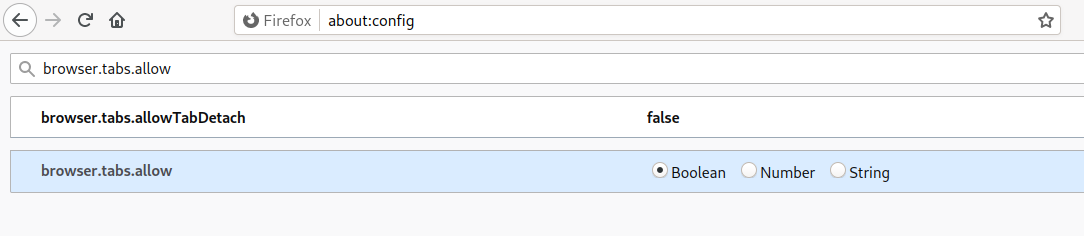
Type about:config into the address bar in Firefox and look for 

browser.tabs.allowTabDetach

Double click to change from true to false.

Thanks to Claude Gohier for posting that!

Gnome Goes Horizontal

An update to the Gnome desktop is coming in Gnome 40 (Gnome seems to be going from 3.xx to 40) which apparently will be here* in March 2021. See  blogs.gnome.org.

Major changes (at least the ones that grabbed my attention) are:

  • A switch from vertical to horizontal layout for the panel and workspace grid
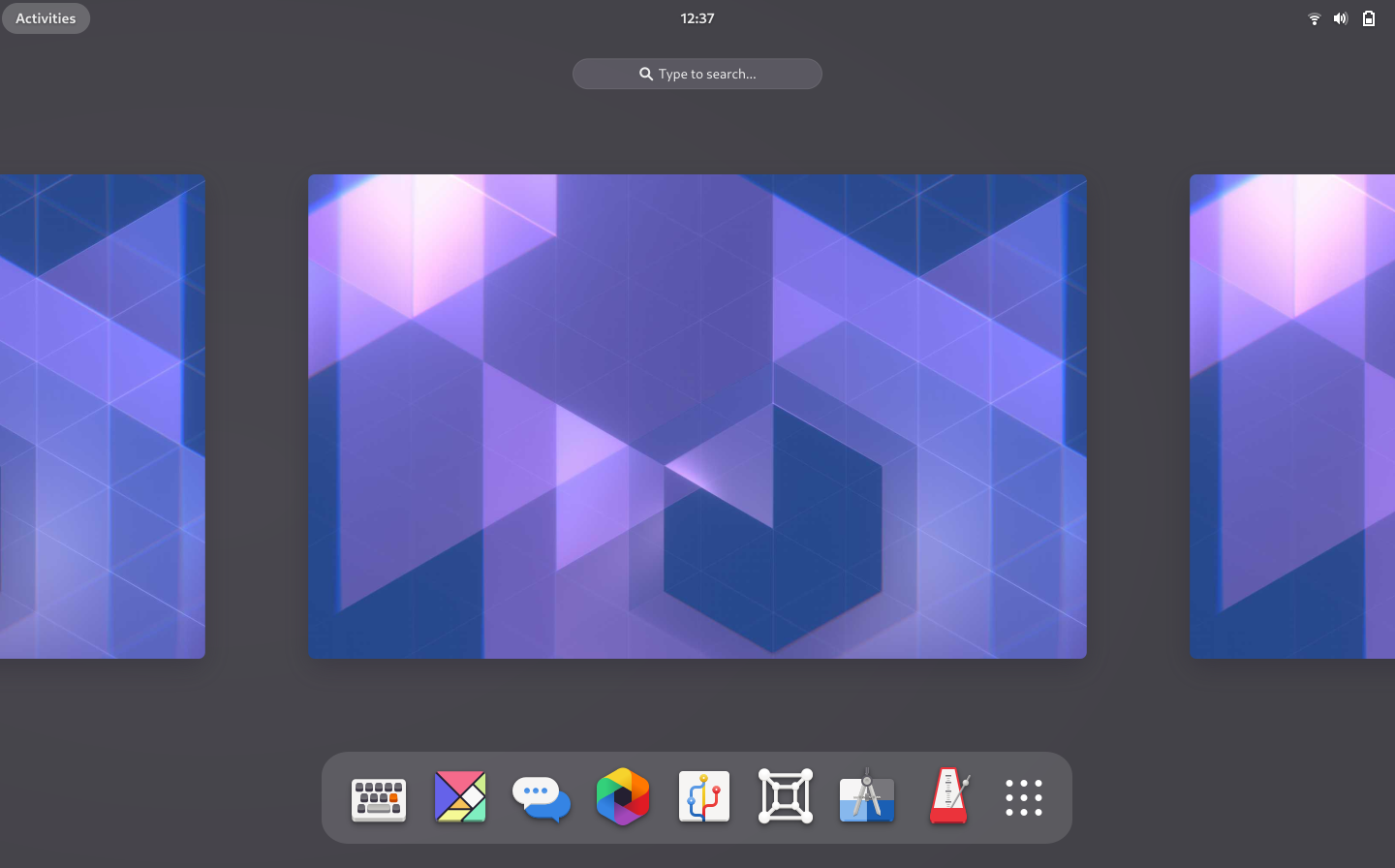
  • The empty boot screen is replaced with panel, workspaces and search field visible
  • Customisable app grid - rather than alphabetical
  • Search results now appear in an overlaid window rather than a new screen

My initial reaction is that these seem to be improvements for the good. I'm not too bothered about the move from vertical to horizontal, but yes, having to click on Activities to begin doing anything was an unnecessary obstacle, especially for new users.

I hardly ever used the rather turgid alphabetical app grid, and the ability to find frequently used programs without cluttering the panel is welcome.

And the very useful search feature definitely seems to flow better as an overlay.

*As here for me is Debian Stable, when this Gnome release will actually arrive is a different matter. Will it make Bullseye in the new year? Or will I have to wait another two years for the next release? If it arrives in Bullseye, will Gnome release a new version of improvements and bug fixes a few months after Bullseye is released, meaning I will have to run a flawed release for two years?

Oh well, such is life.

Here are some comparisons of mock ups of how the new release is expected to look, compared to Gnome 3.30 in Debian Buster:

Boot

 App grid

Workspace picker


Search


Saturday, December 5, 2020

How to try out the latest version of KDE

I haven't had much time recently for messing about with Linux (rather than actually using it on my PC and laptop), but I came across an article recently on DebugPoint.com (via linuxtoday) which talked about a bug fix release in KDE with "almost all the bugs... squashed already". The KDE Announcements page says this is the third bug fix release after an "absolutely massive release" with "tons of new features and improvements."

I haven't tried KDE for years, so time for a play.

Here's how to try out the latest version of KDE. It's a live USB - so no need to install. These instructions assume you have Linux already. There are other guides available for other OSs.

1. Go to KDE neon and download the latest version. KDE neon is a "rapidly updated software repository" for KDE, based on Ubuntu. It's not a full Linux distribution - just a good way to try out the latest version of KDE if you are not running a rolling release distribution, like the Gnome release based on Fedora which you can download to try out the latest Gnome. Running Debian Stable as I am, I would have to wait over a year for the latest KDE to hit the repositories.

2. Find an old USB drive or SD card. 2GB would be ideal. A good way to make use of  those old memory devices at the back of your draw now that 128GB drives are as cheap as chips.

3. Plug it in and check the device name with this command:

$ ls -l /dev/disk/by-id

Look for the name of the USB drive: in this case it's sdb. (Note: not sdb1 etc as these are partitions of the disk.) Be sure to get this right, or the next step will destroy your hard drive.

4. In your terminal, navigate to the download folder and become root:

$ cd ~/Downloads

$ su

NB: the su command is similar to the su - command except it leaves you in the same folder. It also leaves you with whatever environment variables your system administration has set up for your user. As I'm the administrator and I have set any variables, that is not an issue.

5. Burn the image to the USB drive with the following command:

# dd if=neon-user-20201203-0947.iso of=/dev/sdb
Where if is the source (the file name of the iso image) and of is the destination (in this case the USB drive name we determined earlier). Make sure to get the destination right or you could overwrite your hard drive!

After pressing enter, you may not notice anything happening for a few minutes. If your USB drive has an LED, it will flash. At the end of the process, the terminal will report the successful completion.

6. Reboot the computer. Go into the BIOS if necessary to allow USB boot. There are many guides out there if you need help.

7. Enjoy playing with the latest version of KDE.

So what are my impressions? Well, it's very beautiful, and seems very fast and stable, even on my old and low-powered laptop. It seems to be more mature than KDE of the past, with less of the over adornment of bells and whistles, although it still has the abundance of configuration options of KDE. 


Tuesday, August 11, 2020

Firmware updates in Gnome

Sitting at my computer the other day, I was surprised to see this update notification in Gnome. surprised because it didn't look like any update notification I had seen before. A quick check with apt-get upgrade confirmed there were no system updates pending.

Here are the details:

The text reads, for anybody Googling:
Device Firmware Unifying Receiver (RQR12)
Device Update RQR12.01_B0019 > RQR12.10_B0032
...This release addresses an encrypted keystroke injection.
I vaguely remembered reading something about how a Gnome upgrade was going to allow Gnome to update firmware for connected hardware, and indeed this is the explanation for the notification I saw: the USB dongle for my mouse (and other Logitech hardware) needed a firmware update, or a hacker sitting under my table might have been able to interfere with my button presses with my wireless mouse.

This was confirmed by the excellent arch Linux wiki:

A quick check with Synaptic (running in non-admin mode, of course, because Buster uses Wayland), revealed that the fwupd daemon was indeed installed.

So there you go: Gnome now offers updates to firmware for connected hardware.

If you are the one person running Gnome who comes across a similar notification, is curious, Googles it and arrives here, I hope you find this post helpful.


Monday, July 15, 2019

SourcesList in Debian Wiki wrong?

I had the following in my sources.list file:
deb http://ftp.uk.debian.org/debian-security buster/updates main contrib non-free
Based on the example sources.list entry at the Debian Wiki:
deb http://deb.debian.org/debian-security/ buster/updates main contrib non-free
But this got me the following warning:
E: The repository 'http://ftp.uk.debian.org/debian-security buster/updates Release' does not have a Release file.
N: Updating from such a repository can't be done securely, and is therefore disabled by default. 
N: See apt-secure(8) manpage for repository creation and user configuration details
I changed the line to the following after reading a post at Stack Exchange (changing stretch for buster):
deb http://security.debian.org/ buster/updates main contrib non-free
Which worked -  Thanks Stephen Kitt.

Stephen's source link however goes to the security information page at debian.org which has the following example:
deb http://security.debian.org/debian-security buster/updates main contrib non-free
I admit to being a bit confused. But I am also tired and my brain isn't working - it's end of term and I have young children.

So I am just going to post this and hope that either somebody will clear up the mystery or I can come back to it later when my brain is working and clear it up.